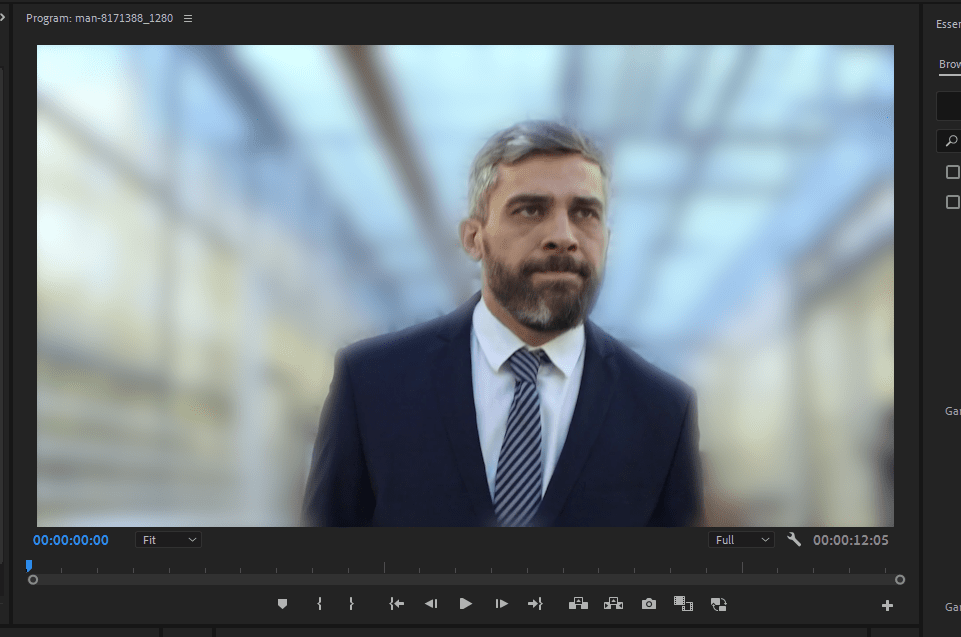
To Blur a Background In premiere Pro, You should Use The Gaussian Blur effect and create an Inverted mask over your subject. Then Adjust Your Blurriness To Your Desired Outcome. You Want to Add Mask Feather to smooth the effect.
seems easy right? Well unfortunately there’s a little more to it than that.
Feel Free To Check Out My Quick Video Guide Too!
Once You have your Video Ready In Premiere Pro Follow These Simple Steps.
Step 1 -Apply Gaussian Blur
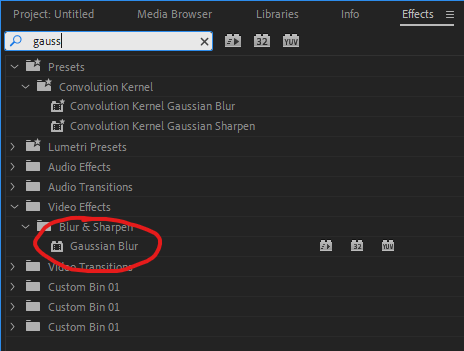
Head Up Into your Effects Panel and search Gaussian Blur, It will be Under Video Effects > Blur and Sharpen > Gaussian Blur.
Drag and Drop this onto Your Clip.
Step 2 -Apply Mask To Focal Point
Edit Effects controls of your desired Clip and select Gaussian Blur, You want to then Select the “Fountain Pen” Icon next to the Rectangle and Circle.
(Make sure your Play head is at the beginning of your clip!)
Draw a mask around the Focal point of the Video.
(Click around the Target, and join at the bottom)

Step 3 -Apply Mask Tracking
Once You’re mask is drawn, You want to press the play button next to the “Mask Path” Under Gaussian Blur Effect. This is going to apply Mask Tracking, essentially as your focal point moves so will your Mask.
Unfortunately This Isn’t the best, meaning we need to do the next step…
Step 4 -Correct the mask
Chances are your mask doesn’t fully stick to your focal point, so move up the timeline to where they start to separate and readjust the mask.
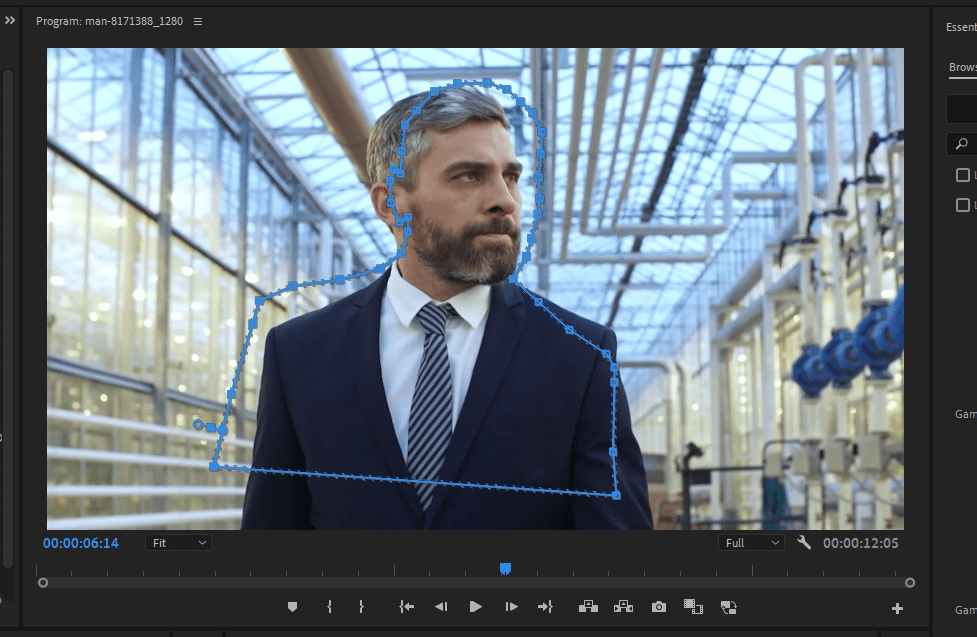
To Adjust the mask, Simply drag and move the points making the mask.
After this is completed, press the same play button again, this will fix change the mask path.
Once These are done You need to keep Repeating this step (Sucks I know,) Do this until You are happy with the result.
Step 5 – Invert and Blur
Now onto the easy stuff, Again in effect controls, Gaussian Blur, tick the inverted box. (this will mean you are adjusting outside the mask, rather than the inside.)
With the Inverted box checked, Adjust Blurriness to your desired Level.
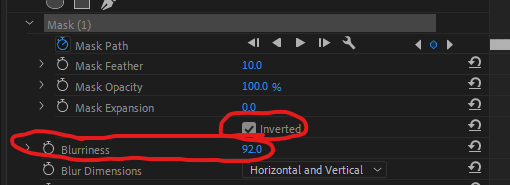
You Can Finish Here, But there is one optional step. To really make your video look good…
Step 6 -Neaten Up using Mask Feather and Mask Expansion
Just what we have done Above, You Should adjust mask feather and Mask Expansion. Adjusting these will really make your video Pop!
Mask feather will blur smooth the edges of your mask, and Mask Expansion will simple make it smaller and larger!
Final Result

Once You Have Completed These steps, Your video should look something like this!
Thank you for taking the time to read my Blog post, I hope it helped.
Have a Great Rest of your day!

 Video Wizard
Leave a comment